How to Export Twitter Bookmarks from Totem to CSV, Markdown, PDF, and AI
First, why this is even a guide: X has no native bookmark export. There is no download button, the official account data archive leaves bookmarks out, and the developer API returns only your 800 most recent bookmarks — developers report pagination quietly stopping after about three pages. So every export path is a third-party one. The job is choosing the one that matches what you’ll do next.
There are two export surfaces in Totem.
The library export is for the whole bookmark library. It downloads a ZIP with CSV, Markdown, JSONL, a readme.md, and a manifest.json.
The reader export is for one saved post, thread, or article. It can copy AI-ready text, copy Markdown, download Markdown, or open the browser print flow so you can save that item as a PDF.
Those are different jobs. Start with the job.
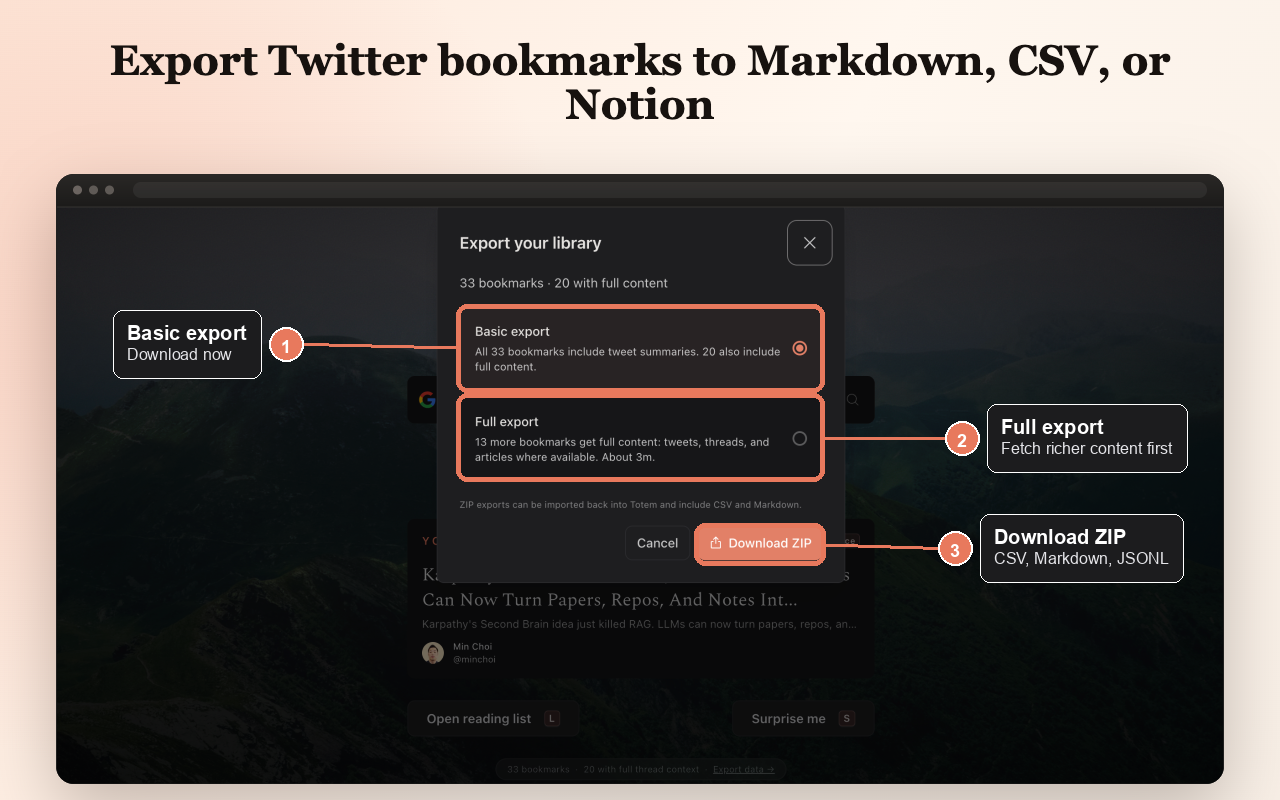
Export the whole library to CSV and Markdown
Use this when you want a local file for the whole library: a spreadsheet, a folder of Markdown files, and data Totem can import later.
- Open a new tab with Totem installed.
- Wait for your bookmark count to appear at the bottom.
- Click
Export data. - Choose
Basic exportif you need the file now. - Choose
Full exportif you want Totem to fetch richer content first: tweets, threads, and articles where available. - Click
Download ZIP. - Unzip the downloaded file.
Inside the ZIP, the files you will usually care about are:
| File | Use it for |
|---|---|
bookmarks.csv | Sheets, Excel, Notion databases, bulk sorting |
readme.md | A readable index of exported bookmarks |
bookmarks/*.md | One Markdown file per saved bookmark |
data/*.jsonl | The importable Totem backup data |
manifest.json | Counts, schema version, account hash, checksums |
If you only want a spreadsheet, open bookmarks.csv.
If you want readable local files, open the bookmarks/ folder.
If you want to restore the library later, keep the whole ZIP. Do not pull out just the CSV.
Basic export or Full export?
Basic export downloads what Totem already has locally. Every bookmark gets a CSV row and a Markdown file. Bookmarks with cached detail get richer Markdown.
Full export prepares more missing detail before the download. It is better for a real backup, but it takes longer because Totem is fetching full content at a conservative pace.
Use Basic export when:
- you need the file right now
- you mostly care about URLs, authors, and tweet text
- you are doing a quick spreadsheet pass
Use Full export when:
- you want to read saved threads outside Totem
- you want more complete Markdown files
- you are making a backup you expect to trust later
Either way, the export runs locally — no server, no extra login — and covers your whole library, not just the recent slice the API would hand back. That is the same ground the open-source tools stake out: xarchive advertises that “everything runs locally in your browser,” and twitter-web-exporter sells on pulling bookmarks without the standard 800 limit. The difference here is that Totem only exports what it has actually captured for you, fetched at a conservative pace — not an unlimited server-side scrape.
Export one saved post to PDF, Markdown, or AI text
Use this when the next action is about one saved item, not the whole library.
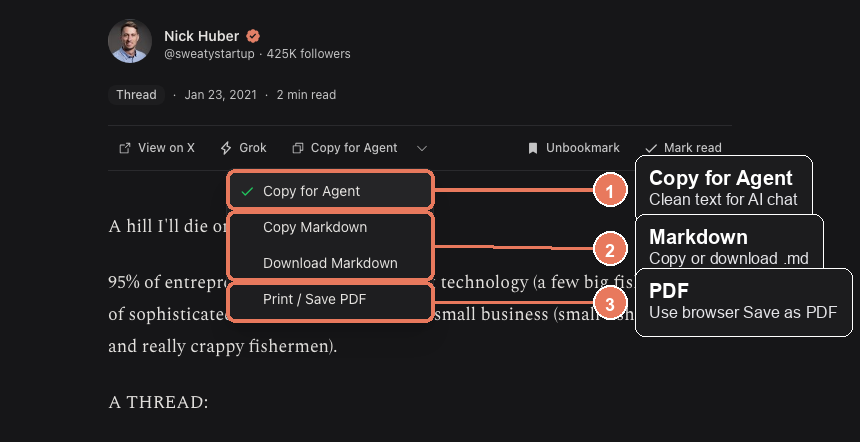
- Open a saved bookmark in Totem.
- Wait for the reader to finish loading the post or thread.
- Find the export control in the reader toolbar. It defaults to
Copy for Agent. - Click the small dropdown arrow next to it.
- Pick the format you need.
The reader menu has four actions:
| Action | What it does |
|---|---|
Copy for Agent | Copies a cleaner AI-ready version with source metadata and less visual clutter |
Copy Markdown | Copies normal Markdown to your clipboard |
Download Markdown | Downloads one .md file for the current saved item |
Print / Save PDF | Opens your browser print dialog so you can save the current item as PDF |
PDF is per item. Totem does not currently export the entire bookmark library as one giant PDF, because that usually creates a file nobody wants to read. For the whole library, use the ZIP. For a single thread or article you want to keep as a document, use Print / Save PDF.
What to use each format for
| You want | Use |
|---|---|
| Sort your saved posts by author, date, or URL | bookmarks.csv |
| Read saved posts outside Totem | bookmarks/*.md |
| Paste one saved item into ChatGPT, Claude, or another assistant | Copy for Agent |
| Save one thread or article as a document | Print / Save PDF |
| Move your library to another Chrome install | Keep the full ZIP and import it later |
The trap is treating “export” as one thing.
CSV is for inventory. Markdown is for reading. AI copy is for one focused prompt. PDF is for one saved item you want to preserve as a document. JSONL is for restore.
The format menu itself has mostly converged across tools — JSON, CSV, and Markdown, sometimes HTML. So the format list is not the differentiator; the job each format does is. Markdown in particular has stopped reading as a generic download and started reading as the notes format: newer exporters now position it explicitly for Obsidian and Notion users who turn captures into notes, not just a file you save and forget. If you export Markdown only to drop it in a vault you never reopen, you have moved the graveyard, not closed it.
A quick check before you trust the export
After downloading the ZIP:
- Open
readme.md. - Confirm the bookmark count looks right.
- Open
bookmarks.csvand check a few rows. - Open one file in
bookmarks/and make sure it has the readable content you expected. - Keep the original ZIP if you may want to import later.
If you chose Basic export and some Markdown files look thin, run Full export later. Basic export is honest about what is already cached. Full export tries to make more of the library readable before the file leaves your browser.
One last thing the export can’t do for you: a clean ZIP is not the same as having read any of it. The well-worn pattern is thousands of saved posts that get exported and still never reopened, and imported notes that go quietly dead in a vault. Export protects the data; it does not solve retrieval. That part is a reading-and-search job — for X bookmarks specifically, that’s what Totem’s searchable new-tab queue is for, with the ZIP as the backup underneath it. The two answer different questions: one keeps the library, the other gets you back into it.
For the field-level format, the technical spec is here: Totem Export Format v1.